Performance Max campaigns hide search queries. Broad match campaigns hide search queries. Google wants you to trust the algorithm and stop asking questions about what people actually typed before they bought your thing.
That works great until a client asks, “Which searches are driving sales?” and you have to explain that Google does not feel like telling you anymore.
So I built a script that pulls the data back out.
This is the system I use to export top-performing search terms across every account in my MCC. It grabs six months of query data, filters out the garbage, calculates real CPA and conversion rates, and drops everything into a Google Sheet with one tab per account.
No third-party tool. No export limit. Just a script that runs once and gives you the numbers Google should have shown you in the first place.
What This Script Actually Does
When it runs, it:
- Pulls search query data for any campaign with at least one conversion.
- Filters out branded terms so you don’t see your own name 400 times.
- Filters out generic junk terms that convert but tell you nothing useful.
- Calculates cost per conversion and conversion rate for each query.
- Writes everything to a Google Sheet, with one tab per account and clean formatting.
The result is a spreadsheet that shows you exactly which search terms are worth bidding on and which are eating up budget without delivering results.
I use this for every client. It takes about three minutes to set up per account, and after that, it just runs.
Why I Needed This In The First Place
I manage many Performance Max campaigns. They convert. They scale. They also hide all the search query data unless you fight Google for it.
Clients do not care about Google’s reasons. They care about knowing which searches drive revenue so they can make better creative decisions, write better landing pages, and stop wasting money on terms that sound good but convert poorly.
Before I had this script, I would:
- Export search terms manually from the UI.
- Copy them into a spreadsheet.
- Build pivot tables to calculate CPA and conversion rate.
- Repeat this process every time someone asks a question.
That got old fast.
Now the script does it for me. I schedule it to run weekly, and the data is always up to date. When someone asks what is working, I send them a link to the Sheet. Done.
Requirements Before You Start
You do not need much:
- A Google Ads MCC account so the script can run across multiple accounts.
- A Google Sheet you create ahead of time.
- Access to Google Ads Scripts under Bulk Actions.
- Five minutes to paste and configure the script.
That is it. No monthly fee. No vendor integration. Just native Google tools.
How To Set It Up
Step 1: Create The Google Sheet
Open Google Sheets and create a new blank spreadsheet. Name it something you will recognize later, like “Top Performing Search Terms.”
Grab the Sheet ID from the URL. It is the long string of characters between /d/ and /edit in the address bar. You will need this in a minute.
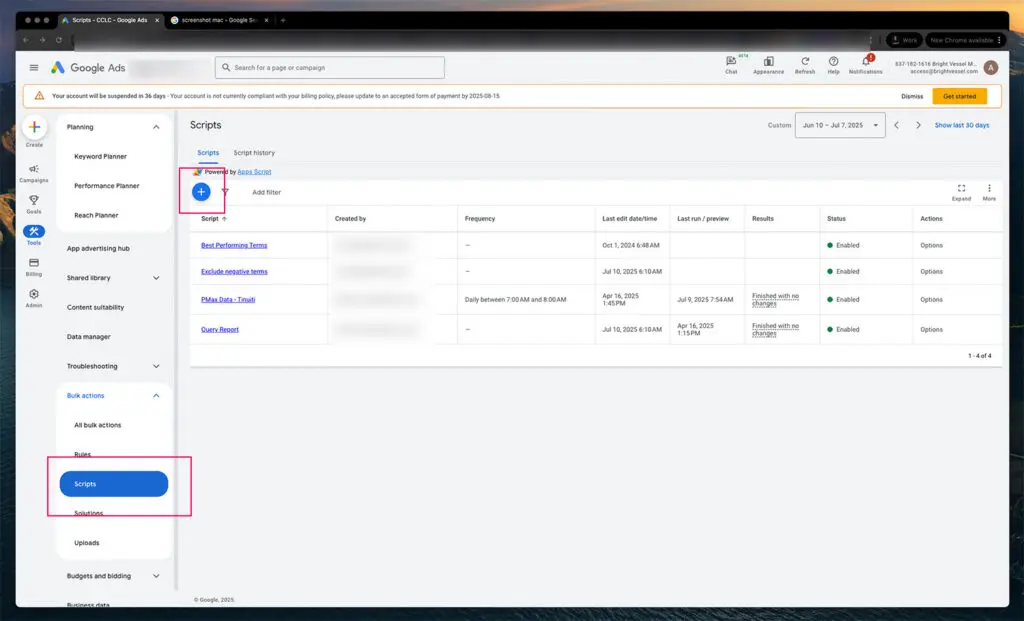
Step 2: Open The Scripts Panel In Your MCC
- Log in to your Google Ads MCC account.
- Click “Tools and Settings” in the top navigation.
- Under “Bulk Actions,” click “Scripts.”
- Hit the blue plus button to create a new script.
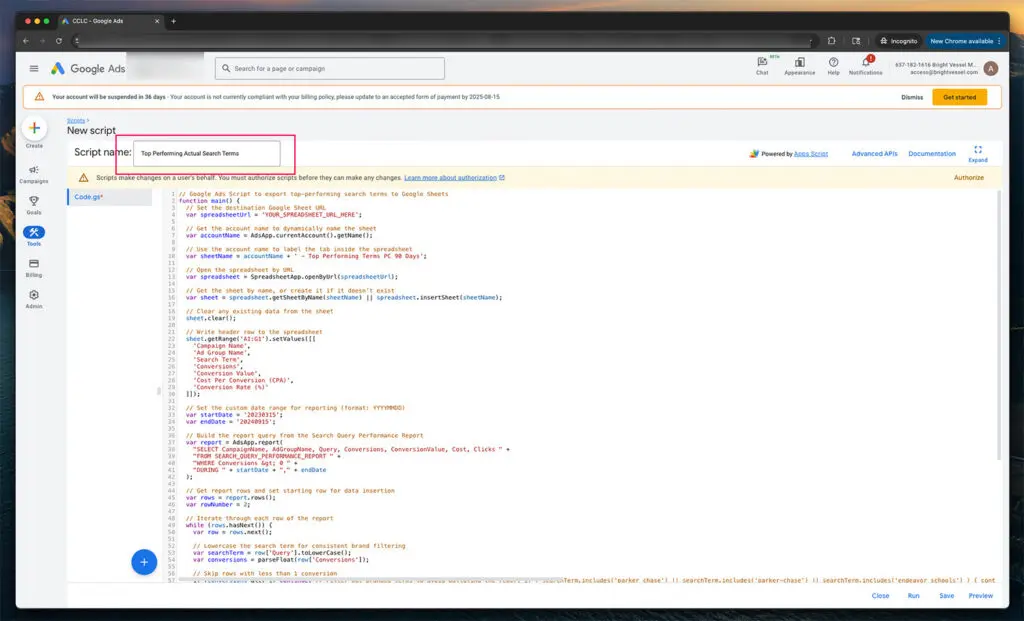
Step 3: Name Your Script
At the top of the script editor, you will see a field to enter a name. Use something clear like “Top Performing Search Terms Export.”
This matters more than you think. When you have ten scripts running across different accounts, you will thank yourself for using descriptive names.
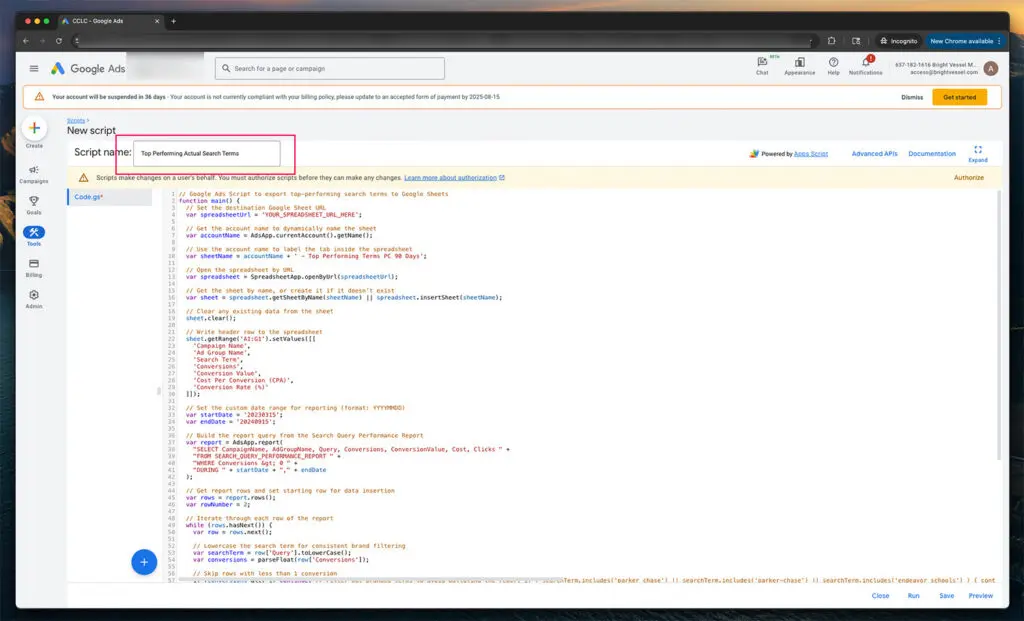
Step 4: Paste The Script
Here is the full script. Paste it into the editor exactly as shown.
function main() {
  // Set the destination Google Sheet URL
  var spreadsheetUrl = 'Paste Your Google Sheet URL Here';

  // Get the account name to dynamically name the sheet
  var accountName = AdsApp.currentAccount().getName();

  // Use the account name to label the tab inside the spreadsheet
  var sheetName = accountName + ' - Top Performing Terms PC 90 Days';

  // Open the spreadsheet by URL
  var spreadsheet = SpreadsheetApp.openByUrl(spreadsheetUrl);

  // Get the sheet by name, or create it if it doesn't exist
  var sheet = spreadsheet.getSheetByName(sheetName) || spreadsheet.insertSheet(sheetName);

  // Clear any existing data from the sheet
  sheet.clear();

  // Write header row to the spreadsheet
  sheet.getRange('A1').setValue('Campaign Name');
  sheet.getRange('B1').setValue('Ad Group Name');
  sheet.getRange('C1').setValue('Search Term');
  sheet.getRange('D1').setValue('Conversions');
  sheet.getRange('E1').setValue('Conversion Value');
  sheet.getRange('F1').setValue('Cost Per Conversion (CPA)');
  sheet.getRange('G1').setValue('Conversion Rate (%)');

  // Set the custom date range for reporting (format: YYYYMMDD)
  var startDate = '20230315';
  var endDate = '20240915';

  // Build the query from the Search Query Performance Report
  var report = AdsApp.report(
    "SELECT CampaignName, AdGroupName, Query, Conversions, ConversionValue, Cost, Clicks " +
    "FROM SEARCH_QUERY_PERFORMANCE_REPORT " +
    "WHERE Conversions > 0 " +
    "DURING " + startDate + "," + endDate
  );

  // Get report rows and set starting row for data insertion
  var rows = report.rows();
  var rowNumber = 2;

  // Iterate through each row of the report
  while (rows.hasNext()) {
    var row = rows.next();

    // Lowercase the search term for consistent brand filtering
    var searchTerm = row['Query'].toLowerCase();
    var conversions = parseFloat(row['Conversions']);

    // Skip rows with less than 1 conversion
    if (conversions < 1) continue;

    // Exclude branded terms to avoid polluting the report
    if (searchTerm.includes('parker chase') || searchTerm.includes('parker-chase')
|| searchTerm.includes('endeavor schools')) {
      continue;
    }

    // Optional generic filter - add or remove terms here
    if (
      searchTerm.includes('creative') ||
      searchTerm.includes('learning') ||
      searchTerm.includes('content')
    ) {
      continue;
    }

    // Extract cost and click values to calculate performance
    var cost = parseFloat(row['Cost']);
    var clicks = parseFloat(row['Clicks']);

    // Calculate cost per conversion (CPA)
    var cpa = conversions > 0 ? cost / conversions : 0;

    // Calculate conversion rate
    var conversionRate = clicks > 0 ? (conversions / clicks) * 100 : 0;

    // Format values
    cpa = cpa.toFixed(2);
    conversionRate = conversionRate.toFixed(2);

    // Write the row to the spreadsheet
    sheet.getRange(rowNumber, 1).setValue(row['CampaignName']);
    sheet.getRange(rowNumber, 2).setValue(row['AdGroupName']);
    sheet.getRange(rowNumber, 3).setValue(row['Query']);
    sheet.getRange(rowNumber, 4).setValue(conversions);
    sheet.getRange(rowNumber, 5).setValue(row['ConversionValue']);
    sheet.getRange(rowNumber, 6).setValue(cpa);
    sheet.getRange(rowNumber, 7).setValue(conversionRate);

    rowNumber++;
  }
}
Step 5: Authorize The Script
The first time you run this, Google will ask for permission.
- Click “Authorize” in the script editor.
- Pick the correct Google account.
- Approve the scopes so it can read your ad accounts, access the Sheet, and write data.
If you skip this step, the script will fail silently, and you will spend ten minutes wondering why nothing happened.
Step 6: Configure The Script For Your Setup
Before you run anything, change these values at the top of the script:
spreadsheetUrl
Replace the placeholder with the full URL of your Google Sheet. Make sure the Sheet is shared with the Google account tied to your MCC.
var spreadsheetUrl = 'https://docs.google.com/spreadsheets/d/xxxxx/edit';
startDate and endDate
These control your reporting window. Format is YYYYMMDD. I usually pull six months of data, but you can adjust based on your volume. If you only have 30 days of conversion data, set the range to a tighter interval.
var startDate = '20230315';
var endDate = '20240915';
sheetName
The script automatically names each tab using the account name plus a label. You can change the label text if you want. I leave it as is.
var sheetName = accountName + ' - Top Performing Terms PC 90 Days';
Branded term filtering
Look for this block:
if (searchTerm.includes('parker chase') ||
searchTerm.includes('parker-chase') ||
searchTerm.includes('endeavor schools')) {
  continue;
}
Replace “parker chase” and “endeavor schools” with your own brand terms. Add more conditions if needed using || searchTerm.includes(‘yourbrand’). The script converts everything to lowercase, so use lowercase in your filters.
Generic term filtering
This block filters out vague terms like “creative” or “learning” that convert but tell you nothing:
if (
  searchTerm.includes('creative') ||
  searchTerm.includes('learning') ||
  searchTerm.includes('content')
) {
  continue;
}
Add or remove terms here based on what you consider noise. For some accounts, terms like “best” or “top” are useless. For others, they matter. You decide.
Conversion threshold
By default, the script only includes search terms with at least one conversion. If you want to raise the bar, change this line:
if (conversions < 1) continue;
To something like:
if (conversions < 3) continue;
That filters out anything with fewer than three conversions in your date range.
Step 7: Run A Manual Test
- Do not schedule anything yet.
- Click “Run” in the script editor.
- Wait for it to finish.
- Open your Google Sheet and confirm:
- Headers are in the first row.
- Data is populating correctly.
- Each account has its own tab.
- CPA and conversion rate calculations look right.
If something looks off, fix it now. Do not wait until you have scheduled the script to run weekly and discover it has been writing garbage data for a month.
Step 8: Schedule It
Once the test run looks clean:
- Open the “Schedule” option in the script editor.
- Set it to run weekly or daily, depending on how often you need fresh data.
- Pick a time when the data has had enough time to settle. I run mine early in the morning so the previous day’s conversions have already been recorded.
- Save the schedule.
From that point, the script runs automatically. You do not have to touch it again unless you add a new account or need to adjust filters.
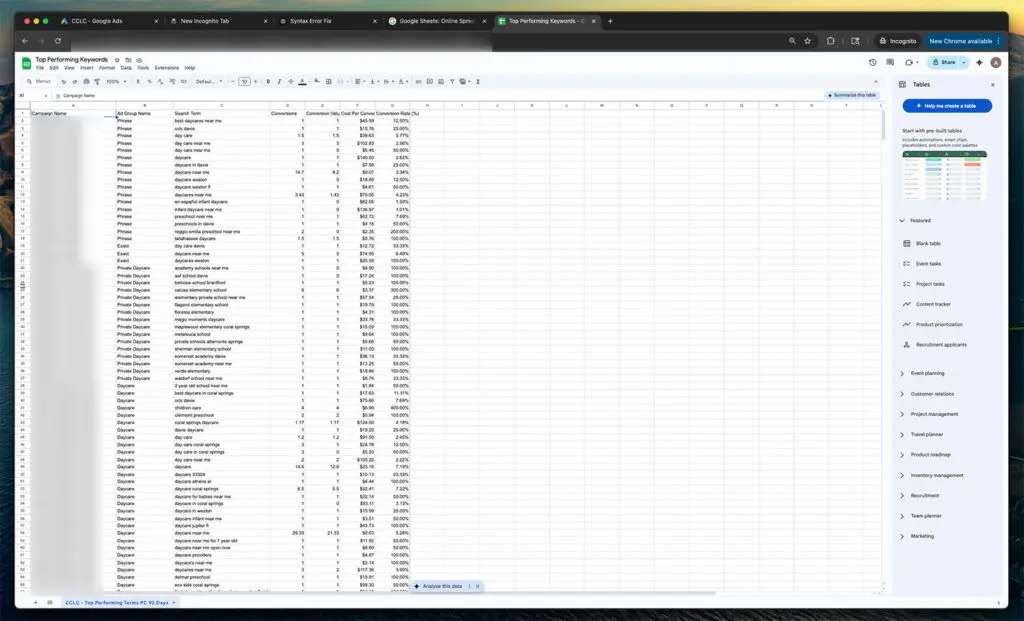
What The Output Looks Like
The script writes seven columns to your Sheet:
Campaign Name
The campaign where the search term triggered an ad.
Ad Group Name
The ad group that matched the term.
Search Term
The exact phrase the user typed into Google.
Conversions
How many tracked conversions came from that term.
Conversion Value
Total value of those conversions based on your account settings.
Cost Per Conversion (CPA)
The average cost to generate one conversion from that search term.
Conversion Rate
Percentage of clicks that resulted in a conversion.
Each row is a search term that drove at least one conversion in your date range. No guessing. No approximations. Just the real queries that turned into money.
How I Use This Data
Once the Sheet is populated, I do a few things:
Sort by CPA.
This shows me which terms convert at a low cost. Those are the ones I want to prioritize in creative, landing pages, and keyword expansion.
Sort by conversions.
This shows me which terms drive the most volume. Sometimes a term has a higher CPA but still makes sense because it scales.
Look for patterns.
If I see the same phrase structure across multiple accounts, it tells me something about user intent. I can build new campaigns or ad groups around that pattern.
Share with clients.
When someone asks “what searches are working,” I send them the Sheet, no analysis needed. The data is self-explanatory.
Feed it back into campaigns.
If a broad match campaign is converting well on a specific term, I add that term as an exact match keyword in a separate campaign with a higher bid. That gives me more control over the traffic.
Ways You Can Extend This
The script does one thing well, but you can build on it.
Add campaign labels.
If you manage multiple brands under one MCC, you can add filters to segment data by brand or business unit.
Trigger email alerts.
Build logic to send you an email when CPA crosses a threshold or conversion rate drops below a certain percentage.
Combine with keyword reports.
Join this data with KEYWORDS_PERFORMANCE_REPORT to see match type breakdowns. That helps you understand whether a broad phrase or exact match is driving better results for each term.
Pull it into Looker Studio.
If you want visual dashboards, connect the Sheet to Looker Studio and build charts that show performance trends over time.
Add conditional formatting.
Highlight rows where CPA exceeds a threshold or the conversion rate falls below a threshold. Makes it easier to spot problems at a glance.
I keep mine simple. The raw data is usually enough.
What This Changed For Me
Before I had this script, I spent hours manually exporting search terms and building pivot tables. Now I spend zero time on that.
When a client asks what is working, I send them a link. When I need to build a new campaign, I pull the Sheet and look for patterns. When performance drops, I check the Sheet to see if the converting terms changed or if volume just went down.
It is one less thing I have to think about. The script runs in the background, the data is always current, and I can focus on making decisions instead of gathering information.
If you are managing Performance Max or broad match campaigns and you are tired of guessing which searches drive results, this script solves that problem. Set it up once, let it run, and you will always know what is working.