I did not build this system because I love spreadsheets. I built it because I got tired of having the same conversation.
“Traffic is down.”
“How long?”
“I don’t know. Maybe a few weeks?”
When you manage 500+ websites, this is not an acceptable answer. But it happens constantly because nobody checks GA4 health across multiple properties. They assume it is working. Then one day, someone looks at a dashboard and realizes nothing has been tracked for three weeks.
By the time you notice, the data is gone. You cannot get it back. You can only explain to an unhappy client why you did not catch it sooner.
So I automated the babysitting.
This article walks through the exact setup I use. It pulls GA4 traffic data into Google Sheets, automatically checks for zero-traffic properties, and emails me when something looks dead. No expensive monitoring tools. No manual checking. Just native Google tools and a script that does one job every single day.

What This System Actually Does For Me
At its core, this is a daily health check for GA4 properties across my entire client portfolio.
When it runs, it:
- Connects to GA4 via SyncWith and pulls the last 3 days of traffic into a Google Sheet.
- Scans every property for zero users.
- Flags any property that has not recorded a single visit.
- Sends an email alert only if something looks broken.
- Sends a clean “all good” message if everything is tracking.
On the dashboard, I have to remember to check. No wondering if tracking is still working. The system tells me when there is a problem, and it shuts up when there is not.
The Real Pain: Nobody Checks Until It Is Too Late
Here is the pattern I kept seeing.
A client launches a new site or updates an existing one. Someone on their team, or their previous agency, or an intern, touches something in GTM or GA4 settings. Tracking stops.
Nobody notices.
A month later, the client logs into GA4 and sees flat zeroes for the last four weeks. Then they call me, and we have an enjoyable conversation about why their analytics are empty.
The problem is not that tracking breaks. Tracking breaks all the time. Google changes things. People misconfigure tags. Filters get set wrong. Servers go down. That is just reality.
The problem is that when it breaks, nobody knows until way too late.
This system changed that. Now, if a property flatlines, I know within 24 hours, not three weeks later, when someone is already angry.
Step 1: Pull GA4 Traffic Data Into Google Sheets With SyncWith
I use SyncWith to connect GA4 properties directly to a Google Sheet. It pulls data automatically on a schedule, so the sheet always has fresh numbers.
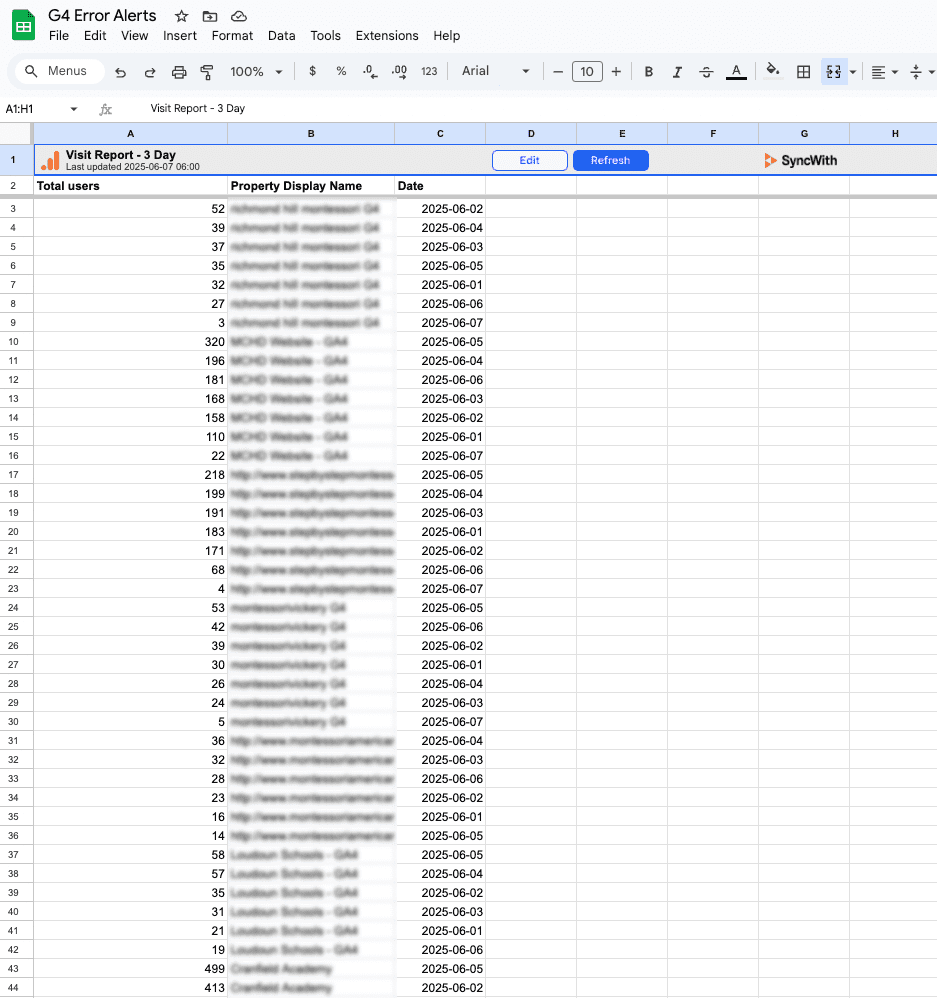
If you have never used SyncWith, it is a Google Sheets add-on that connects to GA4 and other platforms. You authenticate once, configure a report, and it updates itself. No APIs to write. No authentication headaches.
Here is how I set it up:
- Connect your Google Analytics account to SyncWith. You need admin access to the GA4 properties you want to monitor.
- Create a report grouped by: Date, Property Name.
- Add the metric: Total Users.
- Filter the report to the last 3 days. I use 3 days because it gives me a reasonable window without filling the sheet with old data.
- Output the results to a sheet named something like “3 Day Report.”
When it runs, your sheet will look like this:
| Total Users | Property Display Name | Date |
|---|---|---|
| 52 | Website Property 1 G4 | 2025-06-02 |
| 0 | Website Property 2 G4 | 2025-06-05 |
| 218 | Website Property 3 G4 | 2025-06-05 |
Each row represents one day of traffic for one GA4 property. If you see a zero, that property did not track any users that day.
One zero might be noise. Three zeroes in a row mean something is wrong.
Step 2: Use Google Apps Script To Check For Zero Traffic
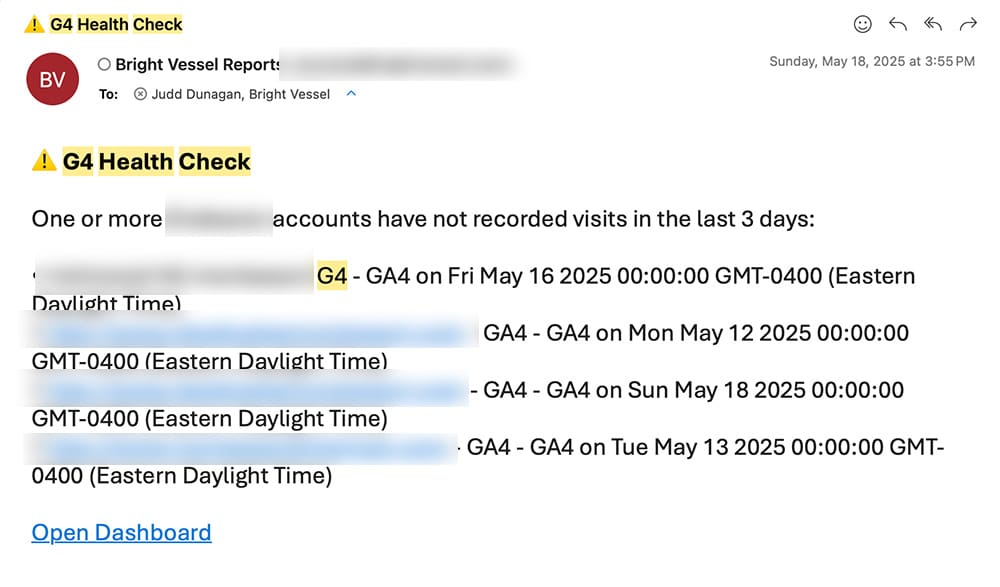
Now that the sheet updates automatically, I wrote a script that scans for properties with zero users in the last 3 days. If it finds any, it sends an email alert with a clean list of the offenders.
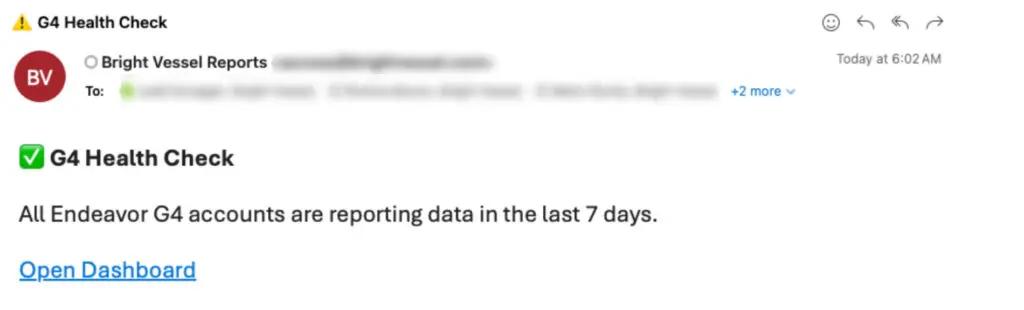
If everything is tracking normally, it sends a different email that says “all good,” so I know the check ran.
Status Email – All Good
Status Email – Oh No, But Check Some Accounts
Here is the script I use:
function sendG4HealthCheckAlert() {
  const SPREADSHEET_URL = 'https://docs.google.com/spreadsheets/d/Make_Sure_You_Use_Your_Sheets_ID/edit#gid=0';
  const SHEET_NAME = '3 Day Report';
  const EMAIL_TO = 'email@youremail.com, email@youremail.com';
  const EMAIL_FROM = 'email@youremail.com';
  const EMAIL_SUBJECT = 'G4 Health Check';

  const ss = SpreadsheetApp.openByUrl(SPREADSHEET_URL);
  const sheet = ss.getSheetByName(SHEET_NAME);
  const data = sheet.getRange(3, 1, sheet.getLastRow() - 2, 3).getValues();

  const zeroAccounts = data
    .filter(row => row[0] === 0)
    .map(row => `• ${row[1]} - GA4 on ${row[2]}`);

  let messageBody;

  if (zeroAccounts.length > 0) {
    messageBody = `
G4 Health Check - Issues Detected

One or more accounts have not recorded visits in the last 3 days:

${zeroAccounts.join('\n')}

Open Dashboard
    `;
  } else {
    messageBody = `
G4 Health Check - All Clear

All accounts are reporting data in the last 3 days.

Open Dashboard
    `;
  }

  GmailApp.sendEmail(EMAIL_TO, EMAIL_SUBJECT, '', {
    htmlBody: messageBody,
    name: 'Bright Vessel Reports',
    from: EMAIL_FROM
  });
}
What this script does:
- It opens the Google Sheet where SyncWith dumps the GA4 data.
- It pulls all rows from the “3 Day Report” tab.
- It filters for any row where Total Users equals zero.
- It builds a list of those properties.
- It sends an email with either a problem list or an “all clear” message.
You can add or remove emails in the EMAIL_TO field. I usually include myself and whoever is responsible for tracking on the client side.
Step 3: Automate It With A Time-Based Trigger
To make this check run daily without me thinking about it:
- In your Sheet, go to Extensions, then Apps Script.
- Paste the script above into the editor.
- Click the clock icon on the left sidebar. That opens Triggers.
- Set sendG4HealthCheckAlert to run every day at a time of your choice. I run mine in the morning so I can deal with issues during business hours.
- Save the trigger.
That is it. No manual checking. No forgotten data issues. If a property stops tracking, I get notified. If everything is fine, I get a quick confirmation email and move on with my day.
Common Problem: “400 Bad Request” When Opening Apps Script
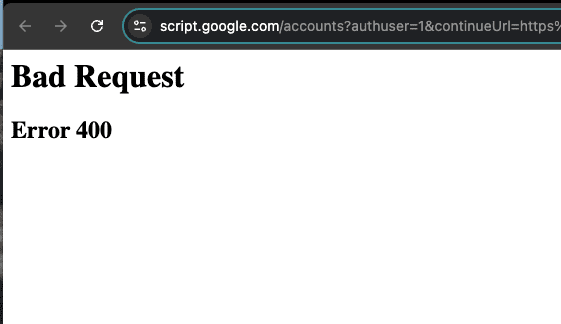
If you try to open Apps Script and get slapped with a “400 Bad Request” error, it is because Google does not handle multiple account logins well.
Fix:
- Sign out of all Google accounts.
- Log in with only the account that owns the Sheet.
- Or use an incognito window with a single account.
This is a Google session issue, not your code. I waste about five minutes on this every few months when I forget.
What This Changed For Me
The most significant change was not technical. It was psychological.
Before this system:
- I had no visibility into portfolio-wide health tracking.
- Problems surfaced weeks after they started.
- Clients assumed I should have known their tracking was broken before they did.
After this system:
- I get a daily confirmation that everything is working.
- If a property flatlines, I know within 24 hours and can fix it fast.
- When a client calls about low traffic, I can immediately determine whether it is a tracking or traffic issue.
I still get the occasional “you should have known” conversation when Google changes something unexpectedly. That is just life with Google. But now I have a watchdog that catches most failures before they become crises.
Final Thoughts
This setup is lean and does exactly one job. It does not use expensive third-party dashboards or complicated integrations. It pulls data via SyncWith, checks it with a simple script, and emails me when something looks wrong.
If you manage multiple GA4 properties, this is worth an hour of setup. You will catch tracking failures before your clients do, which is a much better conversation to have.
If you want to extend this approach, I also use similar systems to monitor Google Ads goal status across my entire MCC and to export top-performing search terms automatically. Same philosophy: automate the babysitting so you can focus on actual work.