I did not learn about Facebook’s Sharing Debugger because I thought it would be fun to explore developer tools on a Tuesday afternoon.
I learned about it because I kept publishing blog posts that looked perfect on our site, and then absolutely terrible when anyone shared them on Facebook.
Wrong image. Sometimes, there is no image. Sometimes, a random screenshot from three articles ago. Sometimes, the WordPress default logo, which looks great when you are trying to appear competent.
The client would send a screenshot. “Why does it look like this?”
I would check the page. Everything looked fine. The featured image was set. The Yoast SEO fields were filled in correctly. The Open Graph tags were in the source code exactly where they belonged.
But Facebook had cached the old version, pulled the wrong image, or decided that a 200×200-pixel thumbnail was good enough for a link preview that should look professional.
After the fifth time explaining “it is Facebook’s cache, not our site,” I figured out how to clear it properly.
This article is the process.
What Facebook’s Sharing Debugger Actually Does
Facebook does not pull fresh data every time someone shares a link. That would be expensive and slow.
Instead, when you share a URL for the first time, Facebook scrapes the page, grabs the metadata, picks an image, and stores all of that in its cache. Then, every subsequent request for that URL uses the cached version.
This is efficient until it is not.
You could have updated the featured image. You may have fixed a typo in the description. You could have added proper Open Graph tags after realizing they matter.
Facebook does not care. Facebook has what Facebook has.
The Sharing Debugger is the tool that tells Facebook to forget what it has and go look again.
You can also use it to preview what Facebook will show before you share anything, which is the more brilliant move, but not what I did the first dozen times.
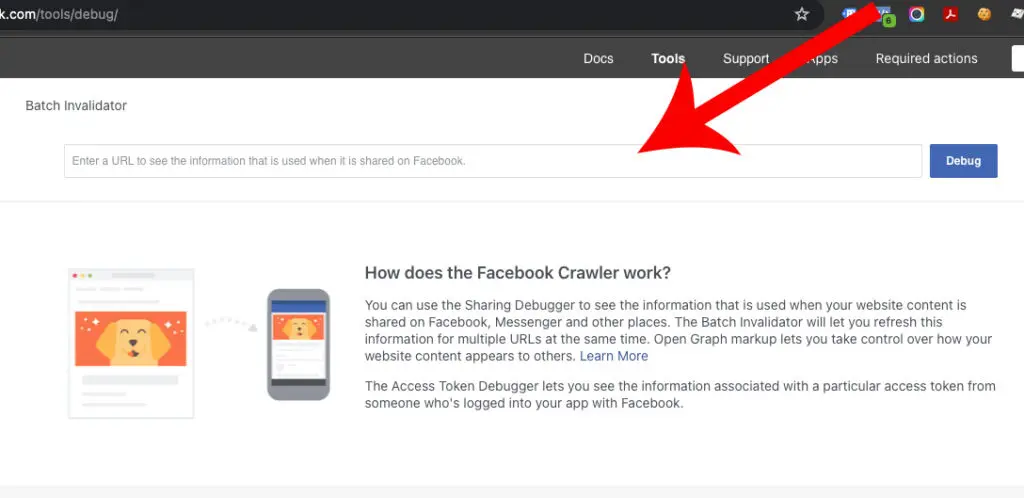
Step 1: Open the Facebook Sharing Debugger
- Go to developers.facebook.com/tools/debug.
- You need to be logged into a Facebook account, but you do not need to be a developer or have any special permissions. The tool is public.
It looks like a developer tool because it is one, but the interface is simple enough that anyone can use it without breaking anything.
Step 2: Paste Your URL
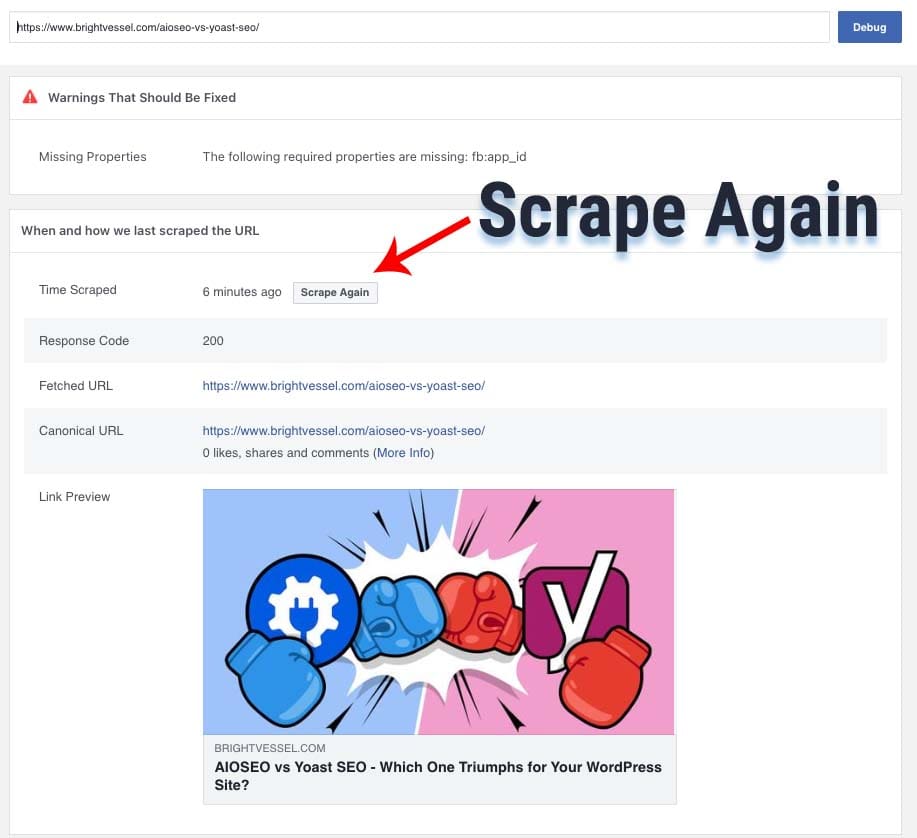
- There is a text box at the top. Paste the full URL of the page you want to check.
- Make sure you grab the complete URL, including the https:// part. Facebook will complain if you give it an incomplete link.
- Click the “Debug” button.
- Facebook will take a few seconds to scrape the page and pull back a report.
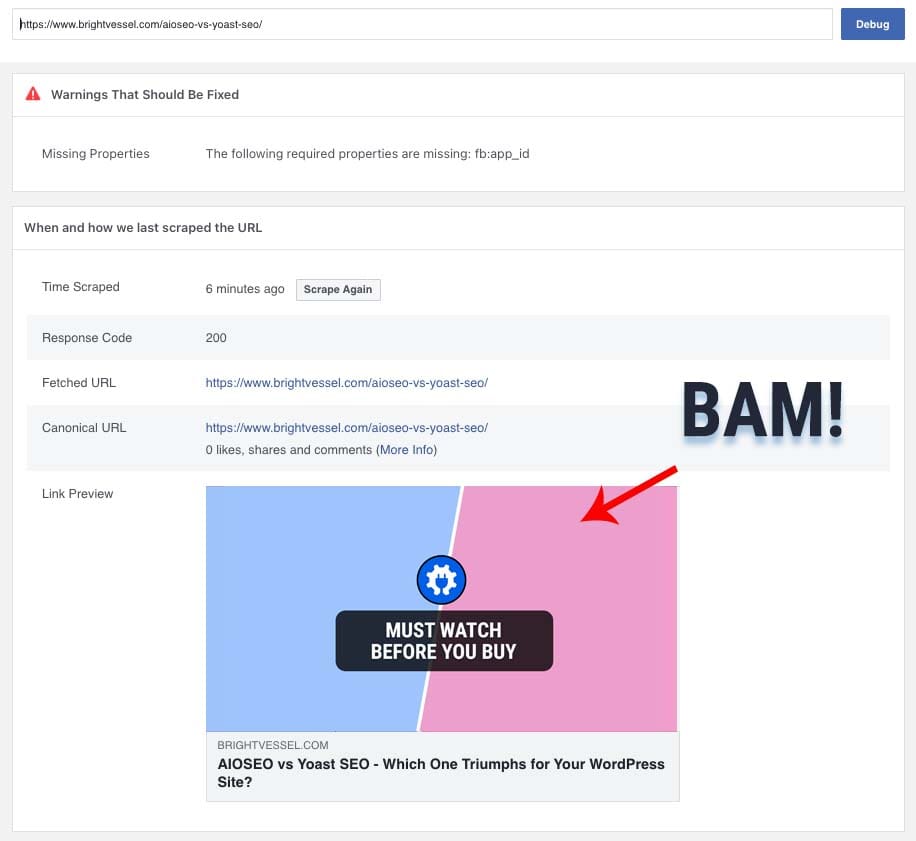
Step 3: Read What Facebook Found
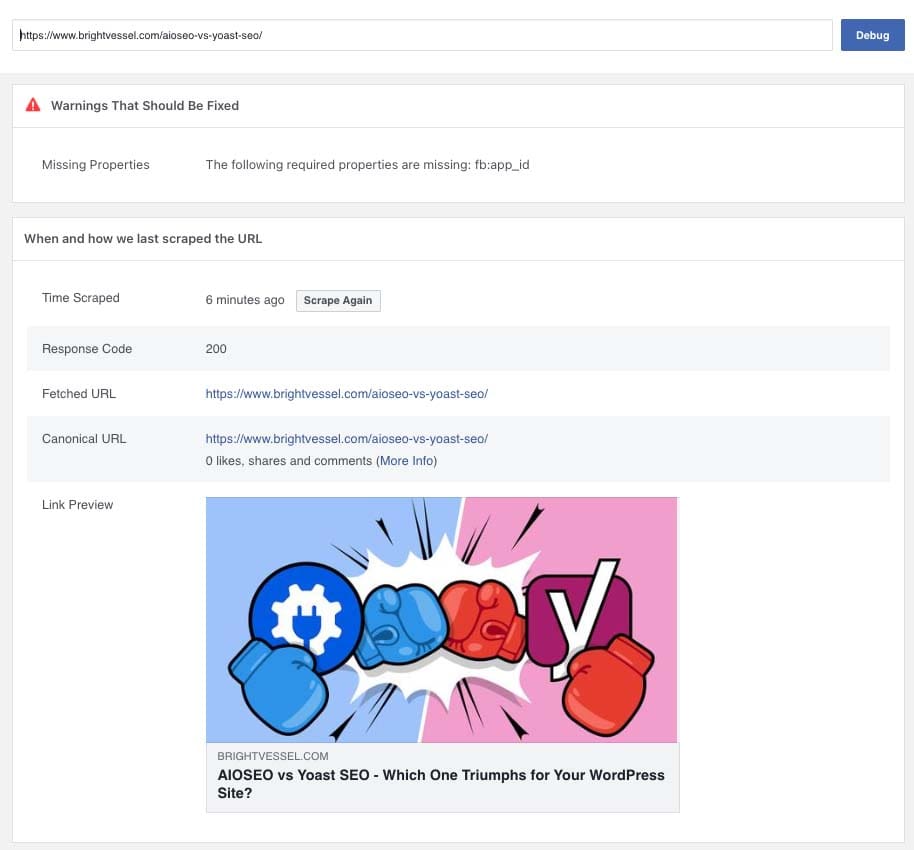
The tool will show you precisely what Facebook sees when someone shares that link.
You will see the title it pulled, the description it grabbed, the image it chose, and any warnings or errors in the metadata.
If the preview looks wrong, the report will usually tell you why. Common problems include no Open Graph image tag where Facebook could not find an og:image meta tag so it guessed badly, the image is too small, where Facebook pulled an image but it is a thumbnail or icon that looks terrible in a link preview, or the cached version is stale, where Facebook scraped your page weeks ago and has not checked since.
Step 4: Fix The Open Graph Tags (If They Are Missing)
If the Debugger is reporting missing or broken Open Graph tags, add them to your page.
At minimum, you want these meta tags in the head section of your HTML:
<meta property="og:title" content="Your Page Title" />

<meta property="og:description" content="A short description of your page" />

<meta property="og:image" content="https://yoursite.com/path-to-image.jpg" />

<meta property="og:url" content="https://yoursite.com/page-url" />
The og:image is the most important for link previews.
Facebook recommends using images that are at least 1200 x 630 pixels. That size displays well on both desktop and mobile without looking pixelated or cropped awkwardly.
If you are using WordPress, most SEO plugins, such as Yoast or Rank Math, will handle this automatically once you set a featured image. But it only works if the featured image is actually set and the plugin is configured correctly.
Which brings me to the part nobody mentions: sometimes the tags are there and correct, and Facebook is still showing the wrong thing because of caching.
Step 5: Clear Facebook’s Cache
Once you have fixed the Open Graph tags or updated the image on your page, go back to the Sharing Debugger.
- Paste the URL again.
- Click the “Scrape Again” button.
- This tells Facebook to ignore whatever it has cached and pull fresh data from your page right now.
- Wait a few seconds. The tool will re-scrape the page and show you the updated preview.
If it looks right this time, you are done. The following person who shares that link will see the correct image and description.
If it still looks wrong, either the tags are still broken, or your CDN or caching layer is serving stale HTML to Facebook. That is a different problem that usually involves clearing your site’s cache, not Facebook’s.
Why This Matters More Than You Think
Link previews are not just cosmetic.
A broken or missing image makes your content look unfinished. It reduces click-through rates. It makes people second-guess whether the link is worth their time.
I have seen posts get half the engagement they should have because the preview image was a random screenshot instead of the actual featured image.
And when you are running a business where every click matters, that adds up.
Using the Sharing Debugger before you share anything new is a small habit that prevents a lot of unnecessary damage control later.
What I Do Now
Every time I publish something important, I run it through the Debugger first.
I paste the URL, check the preview, and if anything looks off, I fix it before I post the link anywhere.
It takes 30 seconds and saves me from having to explain to a client why their blog post looks broken on Facebook.
If you manage multiple sites or publish frequently, you can also bookmark the Debugger and integrate it into your regular workflow. It is faster than dealing with angry screenshots later.
One More Thing About LinkedIn and Twitter
Facebook is not the only platform that caches link previews.
LinkedIn has a similar tool called the Post Inspector.
Twitter does not have an official debugger anymore, but you can preview how your link will look using the Twitter Card Validator if it is still available, or you can just share the link privately first to check.
The process is the same: check the preview, fix the Open Graph tags if needed, clear the cache, and move on.
Facebook’s tool is just the one I use most often because Facebook link previews tend to break more consistently than the others.