I did not write this script because I love automation. I wrote it because of a very specific kind of pain:
- One of our largest clients
- Hired a marketing agency
- The agency then hired another agency.
- Who then kept telling everyone, “The Google Ads goals are not firing.”
Every few days, the message would come in. “Tracking is broken again.”
Except it wasn’t.
We had implemented a server-side tracking setup for them about two years earlier. It was documented, tested, and working. I gave them a detailed doc that walked through the events, the flow, and what needed to be adjusted on the campaign side.
They definitely read it. With their eyes closed.
So every time performance dipped, the sub-agency’s first move was not “maybe our campaigns are not converting” but “the devs must have broken tracking.”
I would log in, check the events, check the conversions, and see the same thing over and over:
- Events are firing correctly.
- Goals configured correctly.
- Actual conversions are low because the campaigns were garbage.
Classic cry wolf situation.
Eventually, I got tired of “prove you’re not wrong” conversations and built something that would settle it daily, automatically, and in writing.
This article is the system.
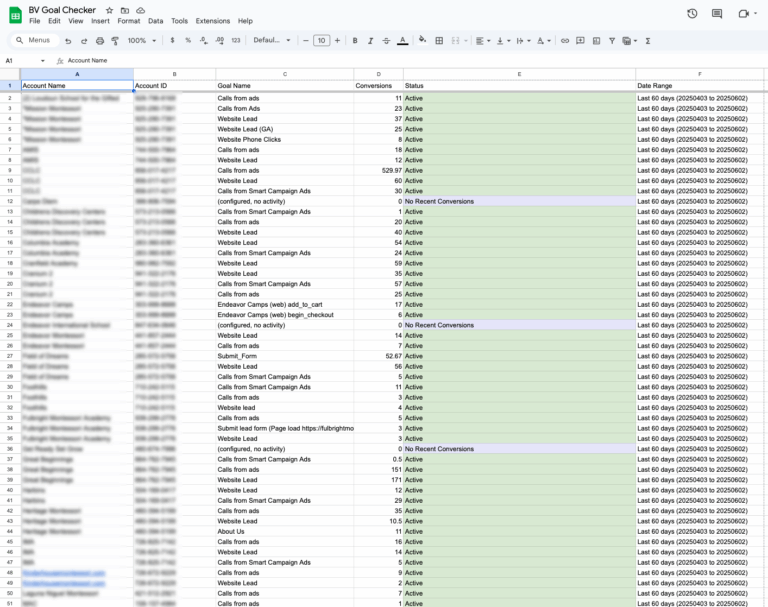
What This Script Actually Does For Me
At its core, this script is a daily health check for conversion goals across every account under my MCC.
When it runs, it:
- Connects to my Google Ads MCC and loops through each linked account.
- Skips any accounts I have explicitly excluded
- Pulls campaign-level conversion data over a defined date range using the campaign performance report
- Group the results by conversion goal name and total conversions
- Assigns a simple status to each goal
- Writes everything into a Google Sheet with color-coded statuses
- Sends an email only if something looks wrong
No third-party tools. No fancy dashboards. Just a spreadsheet that tells me, in plain language, whether goals are firing across the entire portfolio.
It is ugly in the right way. It does exactly one job every day without complaining.
The Real Reason I Needed It: Server Side Tracking + People Not Reading
Back to the client story.
Two years earlier, we had rolled out a server-side tracking setup for them. GTM, server container, clean events, mapped to goals, tested. At launch, everything behaved exactly as you want this kind of thing to.
Then time passed.
Google changed things. Tag behavior evolved. Interfaces moved. The usual.
This is the part many people never internalize:
- Google touches tracking constantly
- GTM is not a “set it and forget it” toy
- Significant changes can break edge cases or require maintenance.
But when a client or agency sees the numbers drop, most of them do not start with “what changed in Google” or “maybe our campaigns are weak.” They start with:
“You must have known this would happen and magically prevented it from happening in the future.”
That is the love-hate part of my relationship with Google. I love the power. I hate the moving target.
The script became my way of saying:
- Goals are firing
- Events are arriving
- If there are no conversions, it is not the tracking
In other words, numbers are low because reality is low, not because the pixels are sad.
Goal Status: How I Decide What Is Broken
In the script, each goal is assigned to one of a few buckets based on its behavior over the lookback period. The logic follows the original breakdown closely, just with my labels.
For each account, the script:
- Queries CAMPAIGN_PERFORMANCE_REPORT for conversion type name and conversions over a date range
- Groups by conversion type name
- Totals conversions per goal
- Assigns a status
Those statuses are:
- Active
Total conversions greater than zero in the lookback period. The goal is alive and doing its job. - Inactive
The goal name clearly looks like a test or is not set at all. These are “internal experiments” or abandoned setup attempts.
- Needs Attention
Legit sounding goal name, but zero conversions in the window. No “test” in the name, nothing weird, just quiet. This is where real issues live.
- No Recent Conversions
No conversion data returned for the account at all. The script writes a single row that essentially says “configured, no activity” and flags it.
In our problem client’s case, the script repeatedly showed:
- Goals marked Active.
- Conversions present, but thin.
- No systemic tracking failures.
The problem was the campaigns, not the plumbing.
How Email Alerts Shut Down Cry Wolf
I wired the script so there are only two kinds of days:
- Nothing is wrong
- All monitored goals have at least some conversions.
- The sheet gets updated.
- I log a clean run, and that is it.
- Something might be wrong.
- At least one goal is Inactive, Needs Attention, or tagged No Recent Conversions.
- The script builds a list of offenders.
- I get an email that looks like a punch list.
The “needs attention” email follows the same structure as in the original article:
- Account name and ID
- Goal name
- Status
- Link to the Google Sheet report with full details at Bright Vessel
So when someone says “tracking is broken,” my process is simple:
- Check the email history
- Check the sheet for that account.
- If there is no alert and the goals have been Active for weeks, we can safely move the discussion back to creative, bids, and targeting, where it belongs.
It removes a lot of heat from the room.
Requirements Before You Start
If you want to use this setup yourself, you do not need much:
- A Google Ads MCC account so you can run scripts across multiple accounts.
- A Google Sheet you create ahead of time.
- Access to Google Ads Scripts under Bulk Actions.
- An email address or list where you want alerts sent.
That is it. No monthly SaaS fee. No external monitoring service. Just native tools and a bit of Apps Script.
The Script I Use
On your personal site, you should drop the full code here.
I strongly recommend:
- Keeping the script in one complete block.
- Leaving the logic exactly as you tested it.
- Only changing configuration values at the top.
You can pull the script directly from the original article, where it is already published with configuration, the main() function, the status coloring, and date helpers.
Use a heading Like:
Full Google Ads Goal Monitor Script
// ========== CONFIGURATION ==========

const SHEET_ID = '1PvpW3eUl5fqRwabBg0P7D8LKzW83MOTVX1KDBMB3ipA';

const LOOKBACK_DAYS = 60;

const EXCLUDED_ACCOUNT_IDS = [

'000-000-000', '000-000-000', '000-000-000'

];

const RECIPIENT_EMAILS = 'judd@brightvessel.com';

// ===================================

function main() {

const sheet = SpreadsheetApp.openById(SHEET_ID).getSheets()[0];

sheet.clear();

sheet.appendRow(['Account Name', 'Account ID', 'Goal Name', 'Conversions', 'Status', 'Date Range']);

const startDate = getDateXDaysAgo(LOOKBACK_DAYS);

const endDate = getTodayDate();

const dateRangeLabel = `Last ${LOOKBACK_DAYS} days (${startDate} to ${endDate})`;

const accounts = MccApp.accounts().get();

const flagged = [];

let rowIndex = 2;

while (accounts.hasNext()) {

const account = accounts.next();

const accountId = account.getCustomerId();

const accountName = account.getName();

Logger.log(`⏳ Checking account: ${accountName} (${accountId})`);

if (EXCLUDED_ACCOUNT_IDS.includes(accountId)) {

Logger.log(`🚫 Skipping excluded account: ${accountName} (${accountId})`);

continue;

}

try {

MccApp.select(account);

const query = `

SELECT ConversionTypeName, Conversions

FROM CAMPAIGN_PERFORMANCE_REPORT

DURING ${startDate},${endDate}

`;

const report = AdsApp.report(query);

const rows = report.rows();

const goalMap = {};

while (rows.hasNext()) {

const row = rows.next();

const goalName = row['ConversionTypeName'] || '(not set)';

const conversions = parseFloat(row['Conversions']) || 0;

if (!goalMap[goalName]) {

goalMap[goalName] = 0;

}

goalMap[goalName] += conversions;

}

if (Object.keys(goalMap).length === 0) {

Logger.log(`⚠️ No conversion data returned for account: ${accountName} (${accountId})`);

const status = 'No Recent Conversions';

sheet.appendRow([

accountName,

accountId,

'(configured, no activity)',

0,

status,

dateRangeLabel

]);

setStatusColumnColor(sheet, rowIndex, status);

flagged.push(`${accountName} (${accountId}) - no conversion goals triggered`);

rowIndex++;

continue;

}

for (const [goalName, totalConversions] of Object.entries(goalMap)) {

let status;

if (totalConversions > 0) {

status = 'Active';

} else if (goalName.toLowerCase().includes('test') || goalName === '(not set)') {

status = 'Inactive';

} else {

status = 'Needs Attention';

}

sheet.appendRow([

accountName,

accountId,

goalName,

totalConversions,

status,

dateRangeLabel

]);

setStatusColumnColor(sheet, rowIndex, status);

if (status !== 'Active') {

flagged.push(`${accountName} (${accountId}) - ${goalName} (${status})`);

}

rowIndex++;

}

} catch (e) {

Logger.log(`❌ Error processing account: ${accountName} (${accountId}) - ${e.message}`);

}

}

if (flagged.length > 0) {

const subject = '⚠️ Conversion Goals Needing Attention';

const body = `The following conversion goals may need review (e.g., no recent conversions or inactive):\n\n`

+ flagged.join('\n')

+ `\n\nView the full report:\nhttps://docs.google.com/spreadsheets/d/${SHEET_ID}`;

MailApp.sendEmail(RECIPIENT_EMAILS, subject, body);

} else {

Logger.log('✅ All goals are reporting conversions.');

}

}

// 🎨 Apply color to only the "Status" column (Column E)

function setStatusColumnColor(sheet, row, status) {

const range = sheet.getRange(row, 5); // Column E

switch (status) {

case 'Active':

range.setBackground('#d9ead3'); // Light green

break;

case 'Inactive':

range.setBackground('#f4cccc'); // Light red

break;

case 'Needs Attention':

range.setBackground('#fff2cc'); // Light yellow

break;

case 'No Recent Conversions':

range.setBackground('#e6e6fa'); // Light purple

break;

default:

range.setBackground(null);

}

}

// 🕒 Helpers

function getTodayDate() {

const date = new Date();

return Utilities.formatDate(date, AdsApp.currentAccount().getTimeZone(), 'yyyyMMdd');

}

function getDateXDaysAgo(days) {

const date = new Date();

date.setDate(date.getDate() - days);

return Utilities.formatDate(date, AdsApp.currentAccount().getTimeZone(), 'yyyyMMdd');

}
That way, people can copy and run it, then read the breakdown below to understand how it works.
Key Configuration: The Only Part I Touch Regularly
At the top of the script, there is a compact configuration block. It looks very similar to what is shown in the original tutorial.
Here is how I think about each piece:
- SHEET_ID
The ID of the Google Sheet that stores all output. Copy it from the sheet URL and paste it here. - LOOKBACK_DAYS
How far back do you want to check conversions? I like 60 days, but you can tighten or loosen that depending on volume. - EXCLUDED_ACCOUNT_IDS
A simple array of account IDs you want to skip. Old clients, internal sandboxes, whatever you do not wish to pollute the report. - RECIPIENT_EMAILS
One or more email addresses that should receive alerts when issues are detected.
Once those are set correctly, I leave the rest of the script alone.
Step By Step: How I Set It Up
The original article walks through deployment in a pretty linear way.
Step 1: Create The Google Sheet
- Open Google Sheets and create a new blank spreadsheet
- Give it a name like “MCC Goal Monitor.”
- Grab the Sheet ID from the URL
- Paste that ID into the script where SHEET_ID is defined.
When the script runs, it clears the sheet, writes a header row, and then starts appending rows of account and goal data with statuses.
Step 2: Open The Scripts Panel In Your MCC
- Log in to Google Ads at the MCC level.
- Click “Tools and Settings” in the top navigation.
- Under “Bulk Actions,” click “Scripts”.
- Hit the plus button to create a new script container.
- Paste your full script into the editor and give it a name you will recognize later.
Step 3: Authorize The Script
The first run needs permission.
- Click “Authorize” in the script editor.
- Pick the correct Google account.
- Approve the scopes so it can read accounts, access the sheet, and send emails.
If you skip this, the script will fail, and you will spend ten minutes wondering why nothing is happening.
Step 4: Tune The Config For Your World
Before I schedule anything, I double-check:
- Correct SHEET_ID
- Reasonable LOOKBACK_DAYS
- Any accounts that should be in EXCLUDED_ACCOUNT_IDS
- Proper RECIPIENT_EMAILS list
Then I save.
Step 5: Run A Manual Test
I always do one manual run.
- Click “Run” in the script editor.
- Wait for the execution to finish
- Open the Google Sheet
- Confirm that:
- Headers look right
- Each active account has rows
- Status values are populated and color-coded
If anything looks off, I fix it now instead of discovering it a week into a schedule.
Step 6: Put It On A Schedule
Once I am happy with the test output:
- Open the “Schedule” option for the script.
- Set it to run daily.
- Pick a time when the data has had enough time to settle, typically early morning.
- Save the schedule.
From that point, it quietly does its job in the background and pings me only when it has something useful to say.
What This Changed For Me With That Client
The biggest change was psychological.
Before the script:
- Every dip in performance became “tracking is broken.”
- I had to manually log in and prove that it wasn’t.
- Everyone wasted time defending their part of the stack.
After the script:
- We had a daily record showing whether goals were firing.
- If the script had not flagged an issue, the conversation moved straight to campaign strategy.
- When Google changed something that mattered, the report surfaced quickly.
And yes, there were still moments when Google changed behavior, GTM needed maintenance, and everyone expected we should have known before Google did. That is just the game.
But now I had a watchdog on my side.